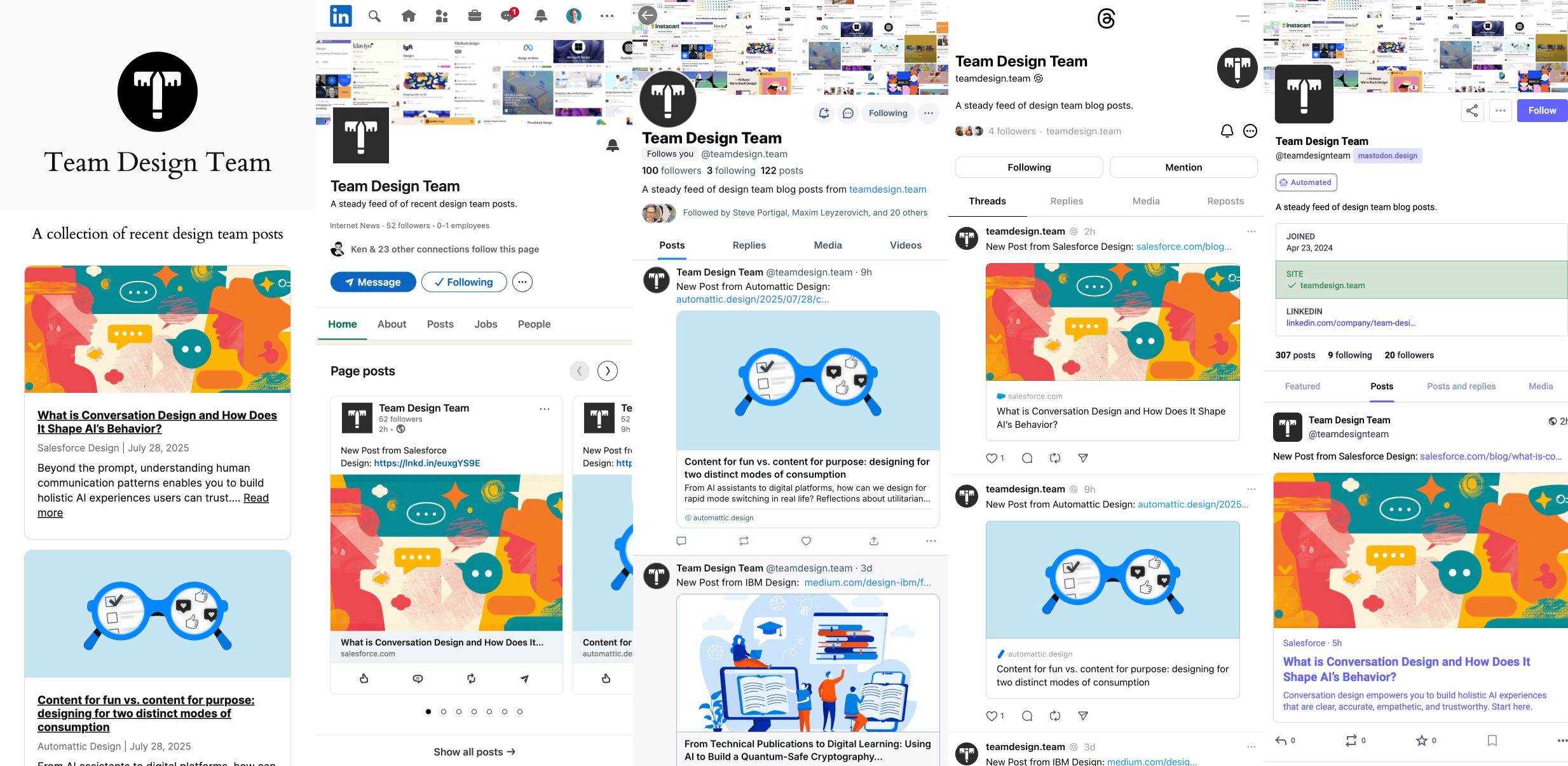
I knew as soon as I registered the teamdesign.team domain and started building the site that I wanted to automatically share new posts across several social channels. Currently, new design team stories get cross-posted to LinkedIn, Threads, Bluesky, and Mastodon.
In case anyone is interested in automating posts to one or more of those channels, I thought I’d share how I set that up. Thanks to WP RSS Aggregator, I was able to set up a custom RSS feed to use as the source. From there, I ended up creating a 10-step Zapier Zap to handle the posting. It’s not perfect, but it works. Here’s the breakdown of each step. (Note: Some of these steps require a Pro Zapier plan.)
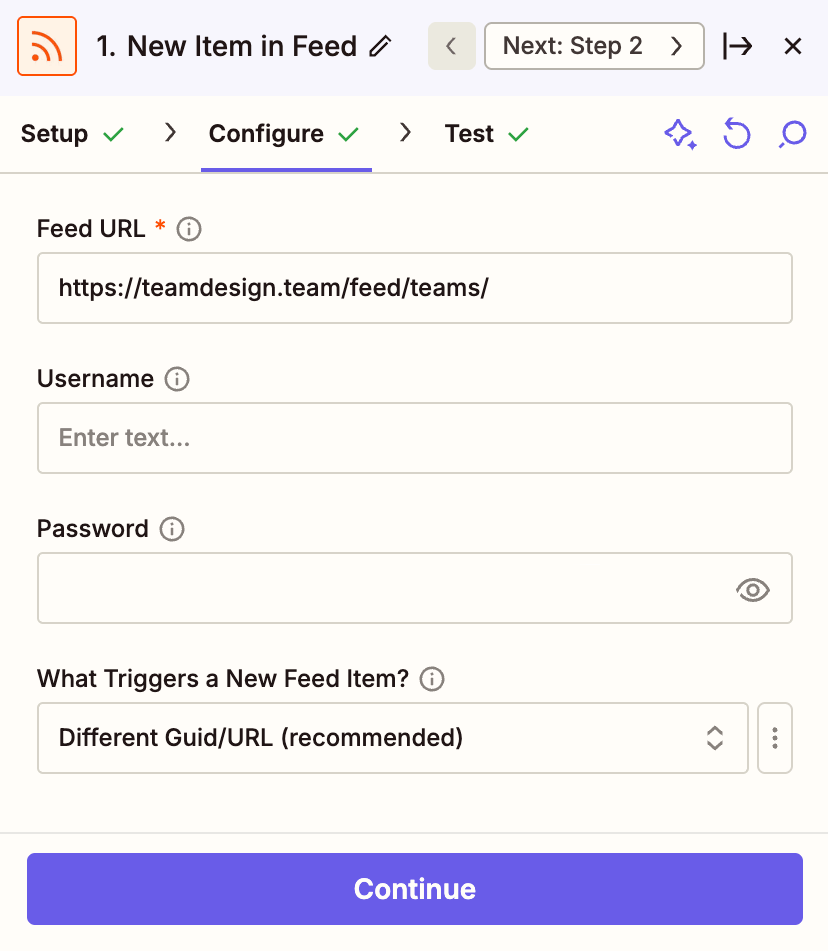
1. New Item in Feed
RSS by Zapier
URL: https://teamdesign.team/feed/teams/
What Triggers a New Feed Item?: Different Guid/URL
2. Get current Date/Time
Formatter by Zapier
Action event: Date / Time
Transform: Add/Subtract Time
Input: Current time
Express: -2 days
To Format: MM/DD/YYYY
3. Ensure recency
Filter by Zapier
Only continue if Published Date is after the step 2 output date. I did this to prevent changes to the feed posting a bunch of older posts at once or updates to older posts on the external sites from triggering a new social post.
4. Post to Mastodon
Webhooks by Zapier
To post to Mastodon, you have to set up an app token. Go to settings > development in your account and create a new application. Be sure to check the box for write:statuses.
URL: https://mastodon.design/api/v1/statuses?access_token=APPTOKEN
Payload Type: Form
Data:
Status: “New Post from [1. Raw Source Title]: [1. Link]”
5. Get Link Metadata
Webhooks by Zapier
LinkedIn requires an image, title, and description for attached link previews, so I created a free account on urlmeta.org to fetch the opengraph data for each blog post URL.
Method: GET
URL: https://api.urlmeta.org/meta?url=[1. Link]
Headers: Authorization: Basic URLMETAKEY
6. Post to LinkedIn
LinkedIn – Create Company Update
With the attached link preview metadata, I had all the values I needed for Zapier’s LinkedIn Create Company Update action.
Update content: “New Post from [1. Raw Source Title]: [1. Link]”
Preview: [1. Link]
Preview – Thumbnail Image: [5. Article thumbnail URL]
Preview – Title: [5. Article title]
Preview – Description: [5. Article summary]
7. Format Image Preview URL for Bluesky
Formatter by Zapier
Bluesky limits image uploads to 1MB, so I changed the query string value from urlmeta to get a smaller image. Even at 800px, I still occasionally get a notification from Zapier that a post didn’t go through because the image was too large.
Action Event: Text
Input: [5. Article thumbnail URL]
Find: “resize:fit:1200”
Replace: “resize:fit:800”
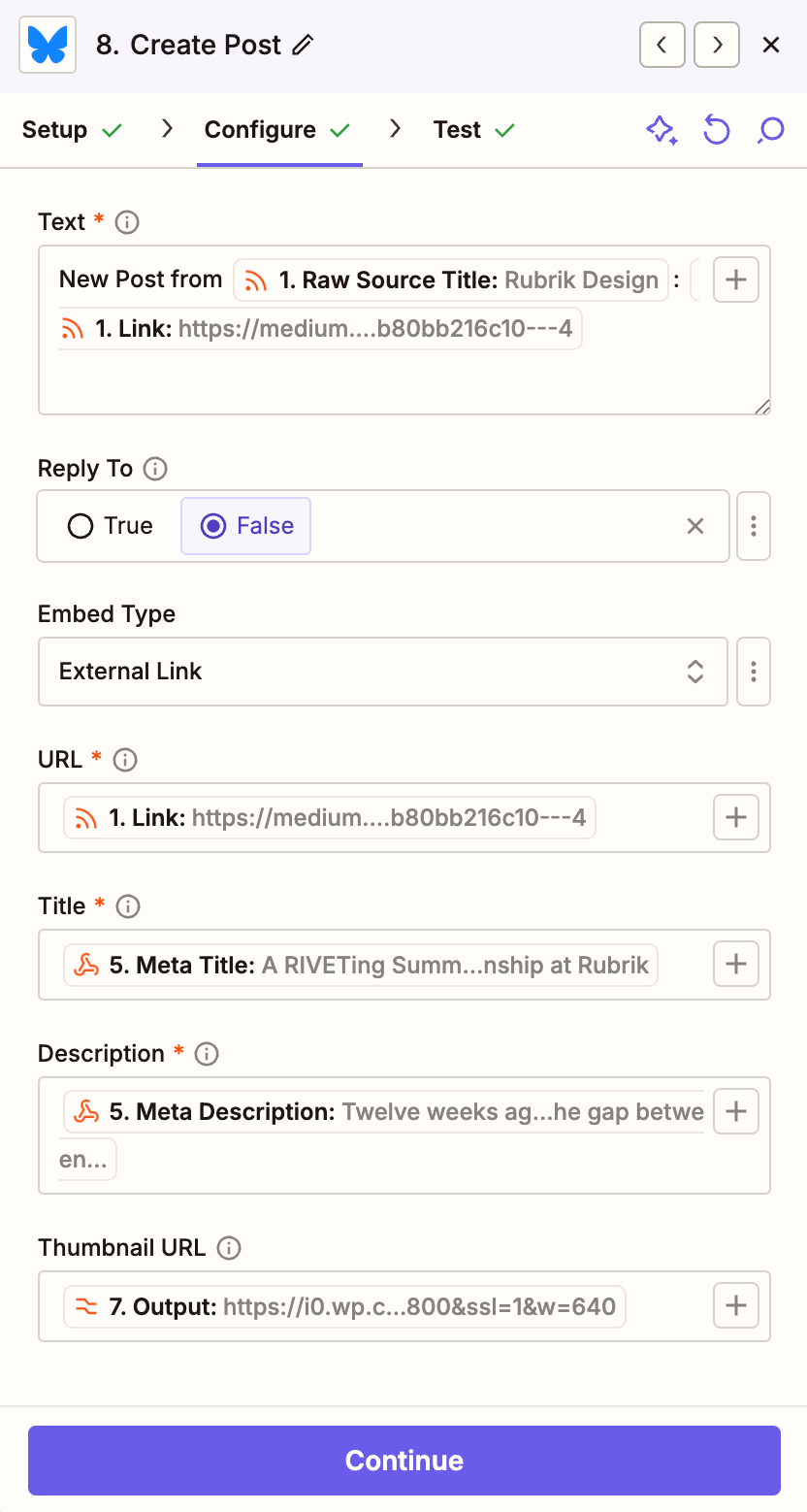
8. Post to Bluesky
Bluesky – Create Post
When I first added Bluesky posting, there was no native Zapier/Bluesky connection. There was a 3rd party integration from Unshape, but they charged $6/mo. To avoid that fee, I half-vibe-coded a Code by Zapier step. I’m so glad they built an integration. Now, if only Threads would do the same…
Text: “New Post from [1. Raw Source Title]: [1. Link]”
Reply to: False
Embed Type: External Link
URL: [1. Link]
Title: [5. Article title]
Description: [5. Article summary]
Thumbnail URL: [7. Output URL]
9. Create Threads Container
Code by Zapier
The code for these last two steps are a bit messy, but it could’ve been worse if I didn’t use AI. To post to Threads, you’ll have to create a Meta App that’s connected to the Threads profile you want to post to. Once you have that set up, you only need 2 strings: a Threads token and your Threads user id.
Be sure when you set up the token that you exchange it for a long-lived access token. The initial token you get back is only good for an hour.
This script creates the post, but it won’t be live yet. Threads returns a container ID for the post in the success response that we’ll use to publish in the final step.
Action Event: Run Javascript
Input Data:
message: “New Post from [1. Raw Source Title]: [1. Link]”
linkAttachment: [5. Meta Site Canonical]
accessToken: THREADSTOKEN
userID: THEADSID
Code:
const accessToken = inputData.accessToken;
const message = inputData.message;
const linkAttachment = inputData.linkAttachment;
const threadsUserID = inputData.userID;
const url = `https://graph.threads.net/v1.0/${threadsUserID}/threads`;

const headers = {
  'Authorization': `Bearer ${accessToken}`,
  'Content-Type': 'application/json'
};

const postBody = {
  text: message,
  link_attachment: linkAttachment,
  media_type: 'TEXT',
};

try {
  const response = await fetch(url, {
    method: 'POST',
    headers: headers,
    body: JSON.stringify(postBody)
  });

  const responseBody = await response.json();

  if (!response.ok) {
    throw new Error(`Error: ${responseBody.error.message}`);
  }

  // Success response
  return {
    success: true,
    message: 'Post created successfully',
    postId: responseBody.id,
    postDetails: responseBody
  };
} catch (error) {
  return {
    success: false,
    message: `Failed to create post: ${error.message}`,
  };
}
10. Post to Threads
Code by Zapier
Last step! With the container ID, we use the user ID and the token again to publish to Threads.
Action Event: Run Javascript
Input Data:
containerID: [9. Post Id]
userID: THEADSID
accessToken: THREADSTOKEN
Code:
const MEDIA_CONTAINER_ID = inputData.containerID;
const THREADS_USER_ID = inputData.userID;
const ACCESS_TOKEN = inputData.accessToken;

// Threads API endpoint for publishing a post
const API_ENDPOINT = `https://graph.threads.net/v1.0/${THREADS_USER_ID}/threads_publish`;

// Function to publish a post
const publishThreadPost = async (userId, creationId, accessToken) => {
  try {
    const response = await fetch(`${API_ENDPOINT}?creation_id=${creationId}&access_token=${accessToken}`, {
      method: 'POST',
      headers: {
        'Content-Type': 'application/json', // Optional, can be omitted for some APIs
      },
    });

    if (!response.ok) {
      const errorDetails = await response.json();
      throw new Error(`Error: ${response.status} - ${errorDetails.message}`);
    }

    const result = await response.json();
    return result;
  } catch (error) {
    console.error('Failed to publish post on Threads:', error.message);
    return {
      error: error.message
    };
  }
};

// Execute the function
return publishThreadPost(THREADS_USER_ID, MEDIA_CONTAINER_ID, ACCESS_TOKEN).then(result => result);